
Smart Invoicing on Nexa: Get Paid Faster with Payment Links
Send invoices with a built-in payment link. Your customer pays online; funds settle to your bank by the next business day.
Table of Contents
Nigeria only (for now): Nexa Smart Invoicing is currently available exclusively for businesses in Nigeria. Support for more countries is on the way; stay tuned on mynexaapp.com.
What is Smart Invoicing?
If you run a business in Nigeria, you know the routine. You send an invoice to a customer, then you wait. You follow up on WhatsApp, you remind them again, and eventually (hopefully) they pay. Smart Invoicing on Nexa eliminates that entire cycle.
With Smart Invoicing, every invoice you send includes a secure payment link powered by Paystack. Your customer opens the invoice email, taps the link, and pays instantly via card or bank transfer. No back and forth, no awkward reminders, no chasing payments. The money settles directly to your bank account by the next business day.
Your invoice status updates automatically the moment payment comes in. You get a confirmation email, your customer gets a receipt, and the paid invoice PDF is generated and attached, all without lifting a finger.
What Smart Invoicing gives you:
- Payment link in every invoice so your customer can pay instantly via card or bank transfer
- Automatic status updates; invoices are marked Paid the moment payment comes in
- Next business day settlement directly to your Nigerian bank account via Paystack
- Professional emails with invoice details and a clear "Pay Now" button for your customer
- PDF invoice attached to every email, with payment link included
- Flexible fee handling; add the 3% processing fee to the customer or absorb it yourself
Stop chasing payments manually
Create your free Nexa account and start sending invoices with built-in payment links today.
Get Started Free on NexaHow Smart Invoicing Works
Smart Invoicing on Nexa is built on top of Paystack, one of Africa's most trusted payment processors. When you enable Smart Invoicing for the first time, Nexa creates a secure payment subaccount linked to your Nigerian bank account. This is a one-time setup that takes less than a minute.
Here is how the full flow works:
- You create an invoice on Nexa and toggle Smart Invoicing on
- You choose who pays the processing fee (your customer or you)
- You hit Create Invoice, and Nexa generates a secure Paystack payment link
- Your customer receives an email with the invoice details, line items, and a "Pay Now" button
- The customer pays via card or bank transfer
- The invoice is automatically marked as Paid and both you and your customer receive confirmation emails
- Your money settles to your bank account by the next business day
The entire process is automated. Once you hit Create Invoice, Nexa handles the payment link, the email, the status update, and the settlement. You focus on your business; Nexa handles the money.
Creating a Smart Invoice on Nexa
Creating an invoice on Nexa works the same way you are used to. Add your customer, fill in the line items with descriptions, quantities, and rates, set a due date, and you are ready to go. The Smart Invoicing toggle appears at the bottom of the create invoice screen.
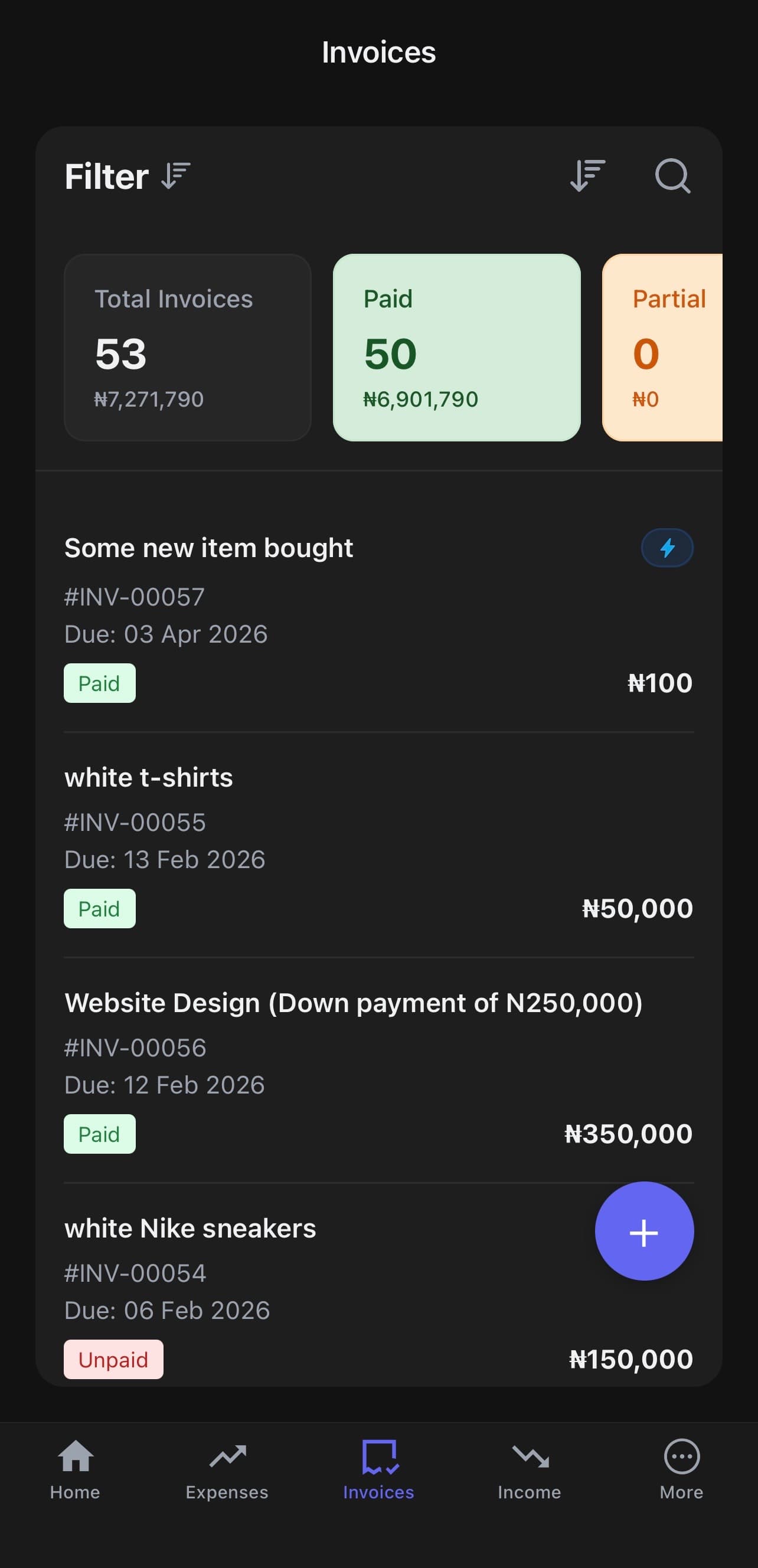
Your invoices on Nexa, organised with totals, status filters, and the Smart Invoicing lightning bolt on enabled invoices.
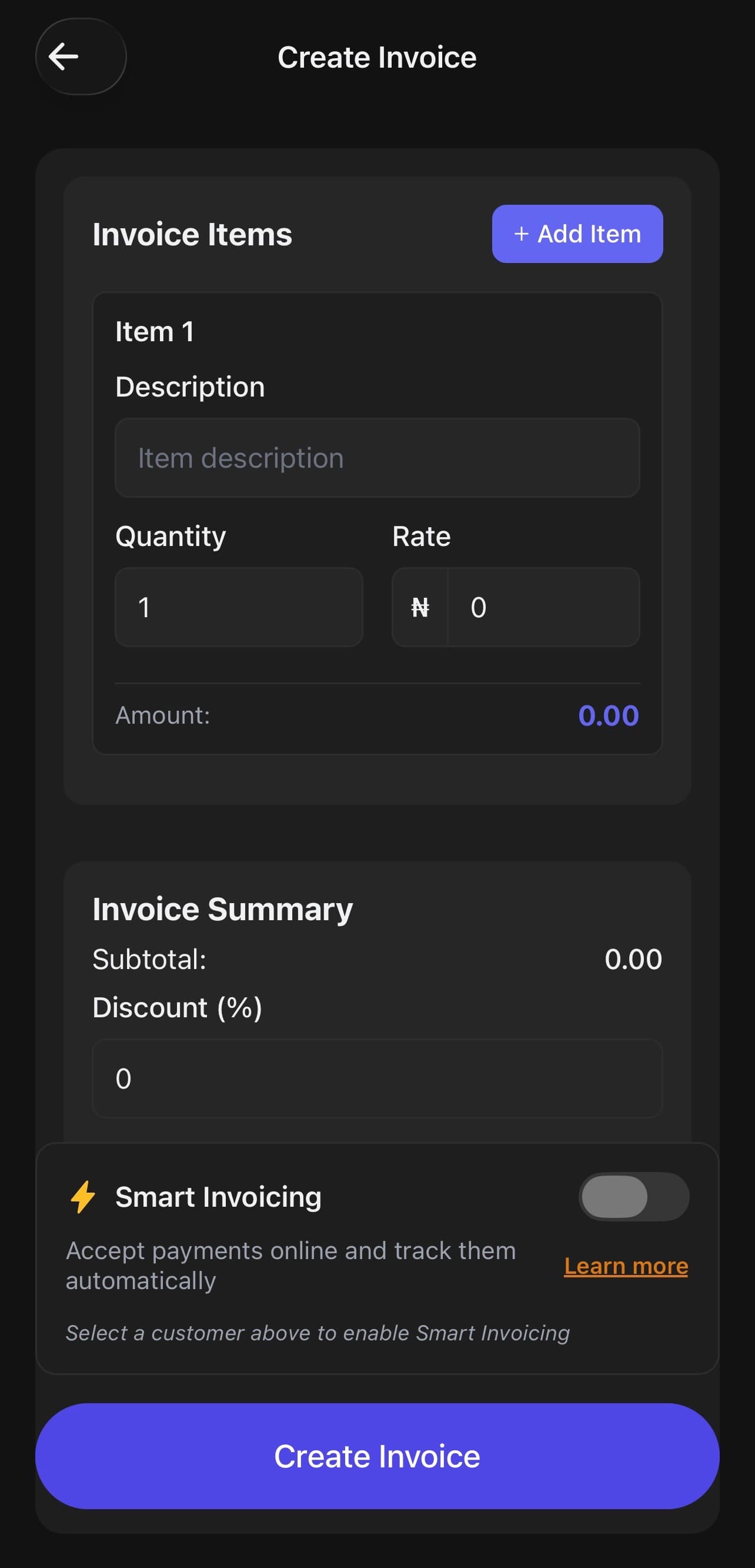
The Nexa create invoice screen with line items, currency prefix, and the Smart Invoicing card at the bottom.
When you toggle Smart Invoicing on, the card expands to show you the fee options and a full payment breakdown. You can see exactly what your customer will pay and what you will receive before sending the invoice.
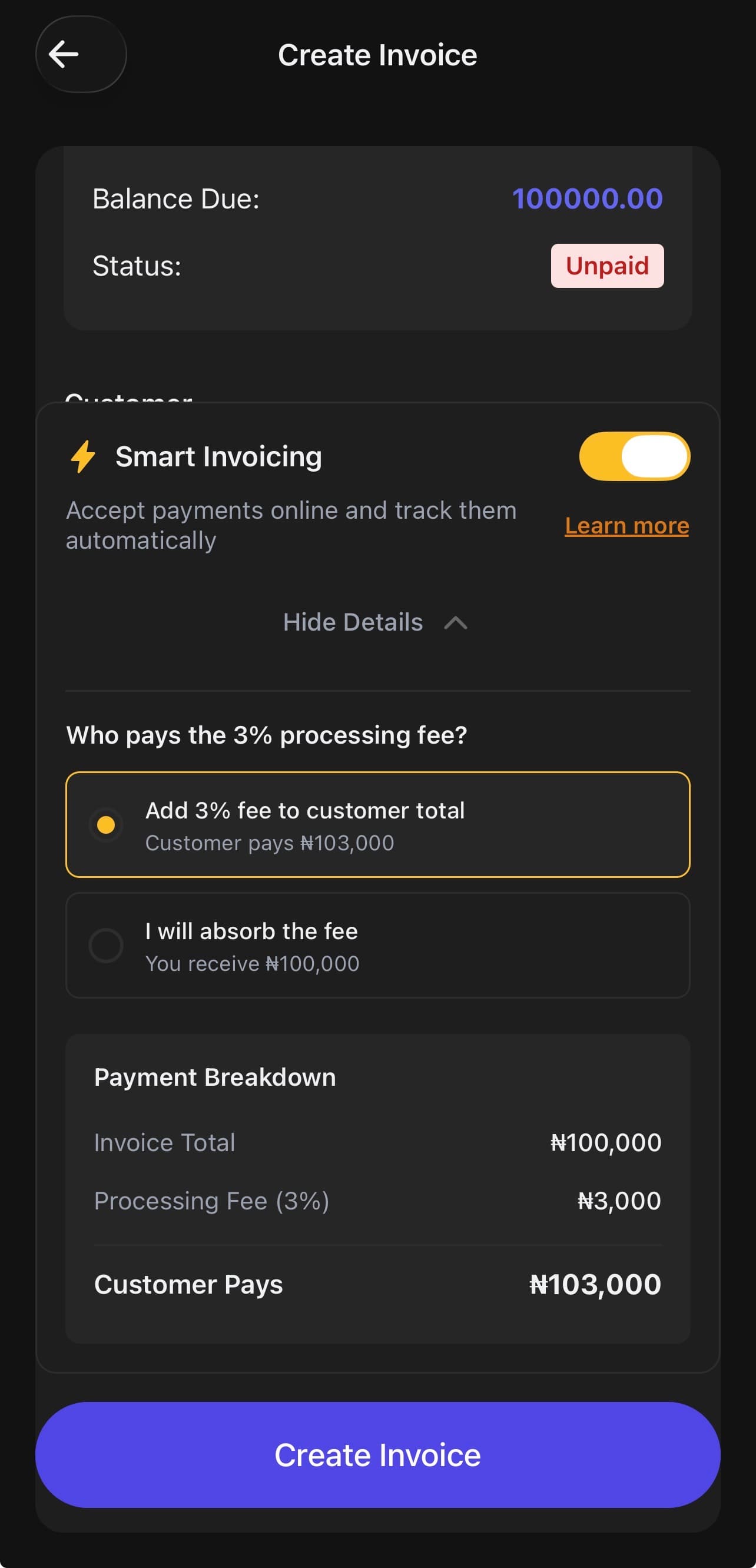
Smart Invoicing toggled on, showing the fee options and payment breakdown.
Tap "Learn more" to see a full explanation of how Smart Invoicing works, including how payments are processed, how funds are settled, and what the fee covers.
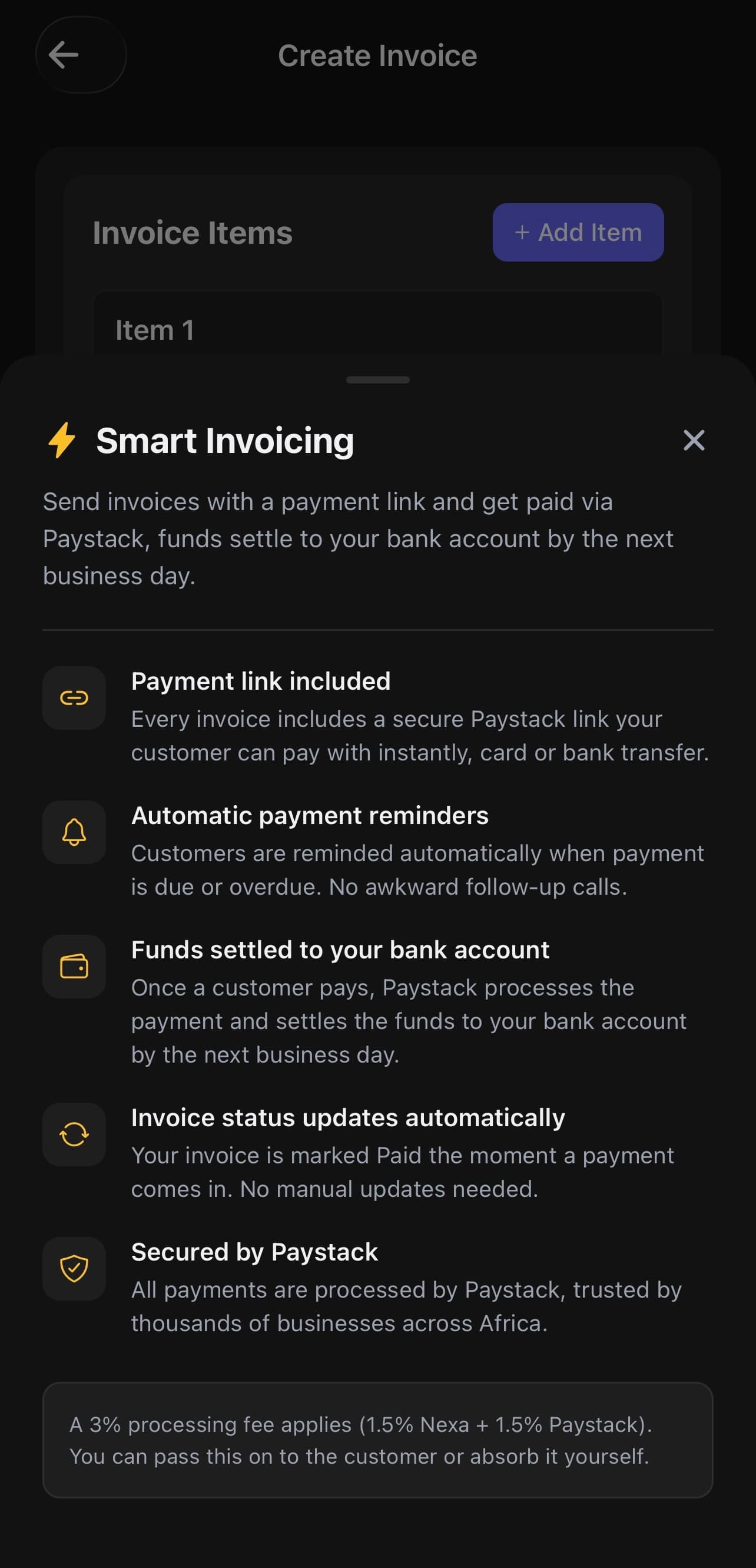
The Smart Invoicing info sheet, everything you need to know about payment links, settlement, and security.
What if Your Customer Doesn't Have an Email?
Smart Invoicing sends the payment link to your customer via email, so an email address is required. But not every customer in your contact list will have one saved, especially if you added them from your phone book or saved them with just a name and phone number.
Nexa handles this gracefully. When you toggle Smart Invoicing on and the selected customer does not have an email on file, Nexa shows an inline field right there on the create invoice screen. You simply type in the customer's email and tap Save. The email is saved to the customer's profile automatically, so you only need to do this once.
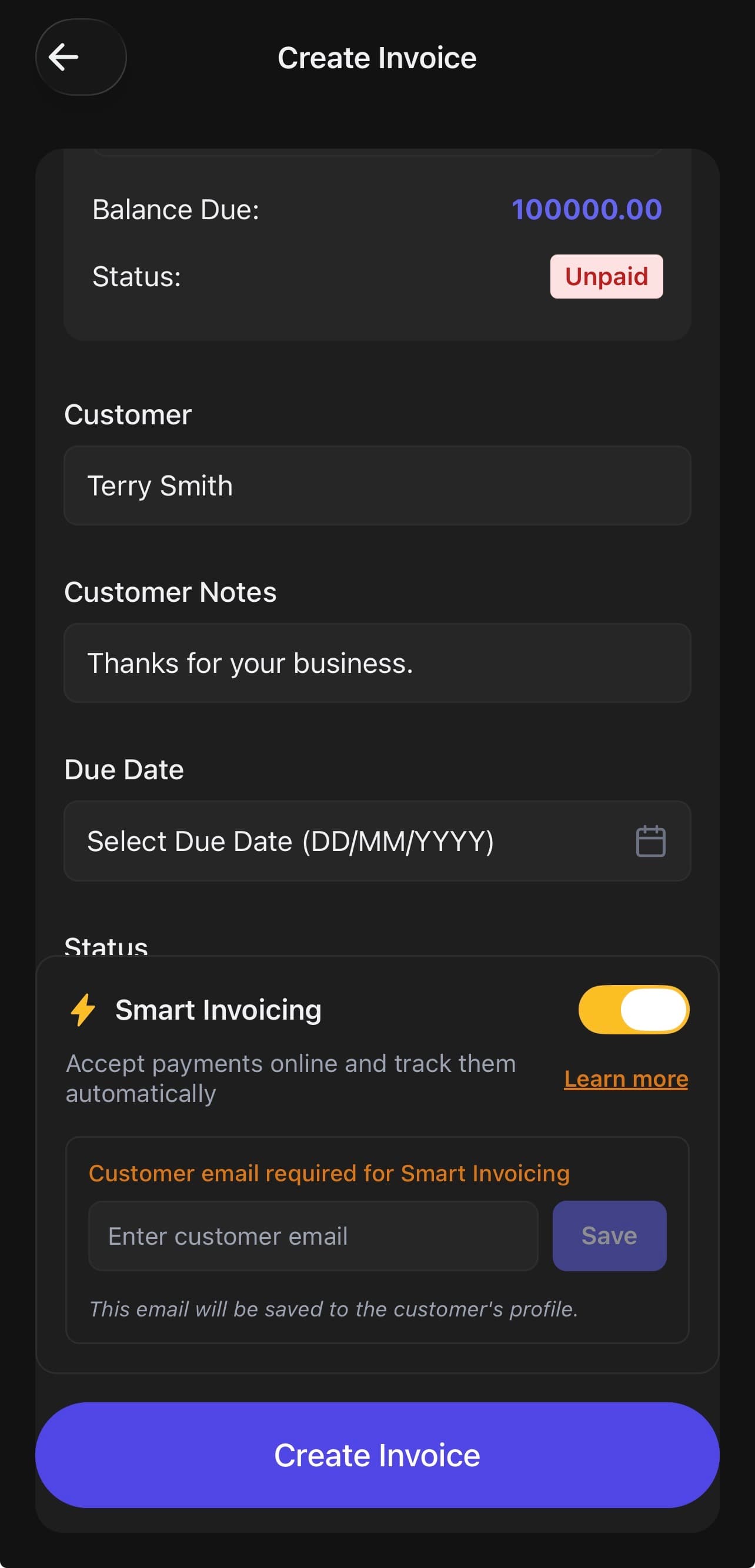
No email on file? Nexa lets you add one inline without leaving the invoice screen.
This means you never have to leave the invoice screen, navigate to the customer's profile, add the email, and come back. Nexa keeps the flow smooth so you can create and send the invoice in one go.
Fee Structure: Pass It On or Absorb It
A 3% processing fee applies to all Smart Invoice payments. This covers both Nexa's platform fee (1.5%) and Paystack's payment processing fee (1.5%). When creating a Smart Invoice, you get two options:
Add to Customer Total
The 3% fee is added on top of your invoice total. Your customer pays the invoice amount plus the fee, and you receive the full invoice amount in your bank account.
Example:
Invoice total: ₦10,000
Customer pays: ₦10,300
You receive: ₦10,000
Absorb the Fee Yourself
You absorb the 3% fee. Your customer pays exactly the invoice amount, and the fee is deducted from your settlement. Clean pricing for your customer.
Example:
Invoice total: ₦10,000
Customer pays: ₦10,000
You receive: ₦9,700
Both options are clearly shown in the payment breakdown on the create invoice screen, so you know exactly what to expect before sending. There are no hidden charges or surprise deductions.
Send your first Smart Invoice today
No setup fees, no monthly charges. You only pay the 3% processing fee when a customer actually pays.
Try Smart Invoicing on NexaGetting Paid: Fast and Secure with Paystack
Every Smart Invoice payment is processed through Paystack, trusted by thousands of businesses across Africa. When your customer pays, the money goes through Paystack's secure payment infrastructure and settles directly to your Nigerian bank account.
Settlement timeline:
- Customer pays via the payment link in their email
- Invoice status updates to Paid instantly on your Nexa dashboard
- Funds settle to your bank account by the next business day
- Confirmation email is sent to both you and your customer
You do not need to manually check Paystack, log into a dashboard, or reconcile anything. Nexa handles the entire flow from payment to settlement. When the money lands in your bank account, Nexa sends you a settlement confirmation so you know exactly which invoice it was for.
One-time setup, then it just works:
The first time you enable Smart Invoicing, Nexa creates a Paystack payment subaccount linked to your bank. This takes less than a minute and only happens once. After that, every Smart Invoice you create is automatically connected to your bank account. No extra configuration needed.
Automatic Payment Tracking
One of the biggest time sinks for small businesses is manually tracking which invoices have been paid and which are still outstanding. With Smart Invoicing on Nexa, this is completely automated.
- Invoice status updates instantly: the moment your customer completes payment, the invoice moves from Unpaid to Paid automatically
- Partial payments are tracked: if a customer makes a partial payment, the invoice status updates to Partial and the remaining balance is shown
- Income records are created: every payment is automatically logged as income in your Nexa financials, so your books stay up to date
- Payment history is stored: each invoice keeps a full record of every payment, including the amount, method, date, and Paystack reference
No more spreadsheets, no more manual reconciliation, no more guessing who has paid and who has not. Open your Nexa invoices tab and everything is right there, updated in real time.
Who is Smart Invoicing For?
Smart Invoicing on Nexa is built for any Nigerian business that sends invoices and wants to get paid faster. If you have ever sent an invoice and then spent days following up for payment, this feature is for you.
Whether you are invoicing for a single project or sending dozens of invoices each week, Smart Invoicing saves you time and makes sure you get paid without the hassle.
Ready to get paid faster?
Create your free Nexa account and send your first Smart Invoice. No monthly fees, no setup costs.
Get Started on Nexa for FreeFrequently Asked Questions
Is Smart Invoicing available outside Nigeria?
Not yet. Smart Invoicing is currently available to businesses in Nigeria only, as it relies on Paystack for payment processing and settlement to Nigerian bank accounts. Support for more countries is on the way; follow updates on mynexaapp.com.
How much does Smart Invoicing cost?
There are no setup fees or monthly charges. A 3% processing fee applies only when a customer actually pays an invoice (1.5% Nexa + 1.5% Paystack). You can choose to pass this fee to the customer or absorb it yourself.
How does the customer pay?
Your customer receives an email with the invoice details and a "Pay Now" button. They can pay via bank transfer or card through Paystack's secure checkout page. No app download required on their end.
How quickly will I receive the money?
Paystack settles funds to your bank account by the next business day. If a customer pays on a Friday evening, the settlement will arrive on Monday.
Do I need a Paystack account?
No. Nexa handles the Paystack integration for you. When you enable Smart Invoicing for the first time, Nexa automatically creates a secure payment subaccount linked to your bank. You do not need to sign up for Paystack separately.
Can I still create regular invoices without Smart Invoicing?
Yes. Smart Invoicing is optional. You can toggle it on or off for each individual invoice. If you prefer to collect payment manually for certain invoices, just leave the toggle off and the invoice works exactly as before.
What happens if my customer pays a partial amount?
The invoice status updates to Partial and the remaining balance is shown. Nexa tracks every payment against the invoice, so you always know exactly how much is outstanding.
Is it secure?
All payments are processed through Paystack, which is PCI DSS compliant and trusted by thousands of businesses across Africa. Nexa never stores your customers' card details. The payment link uses Paystack's secure checkout, the same infrastructure used by major companies across the continent.
Stop Chasing Payments. Use Nexa Smart Invoicing.
If you are still sending invoices and then following up manually for payment, it is time to let Nexa do the heavy lifting.
With Smart Invoicing on mynexaapp.com, you send professional invoices with a built-in payment link, your customer pays with one tap, and the money settles to your bank account by the next business day. No spreadsheets, no WhatsApp reminders, no manual reconciliation.
Your customers get a clean payment experience. Your business gets paid faster. Nexa makes both happen.
Get Started with Nexa
Registration is done on the web dashboard at dashboard.mynexaapp.com/register. Once registered, you can create invoices, enable Smart Invoicing, and manage your business finances directly from your browser or download the Nexa mobile app for a full on-the-go experience.
Download the Nexa mobile app: